> For the complete documentation index, see [llms.txt](https://docs.fylr.io/llms.txt). Markdown versions of documentation pages are available by appending `.md` to page URLs; this page is available as [Markdown](https://docs.fylr.io/help/tutorials/for-administrators/how-to-setup-and-use-iiif.md).
# How to setup and use IIIF
How to configure the International Image Interoperability Framework built into fylr
Activating IIIF
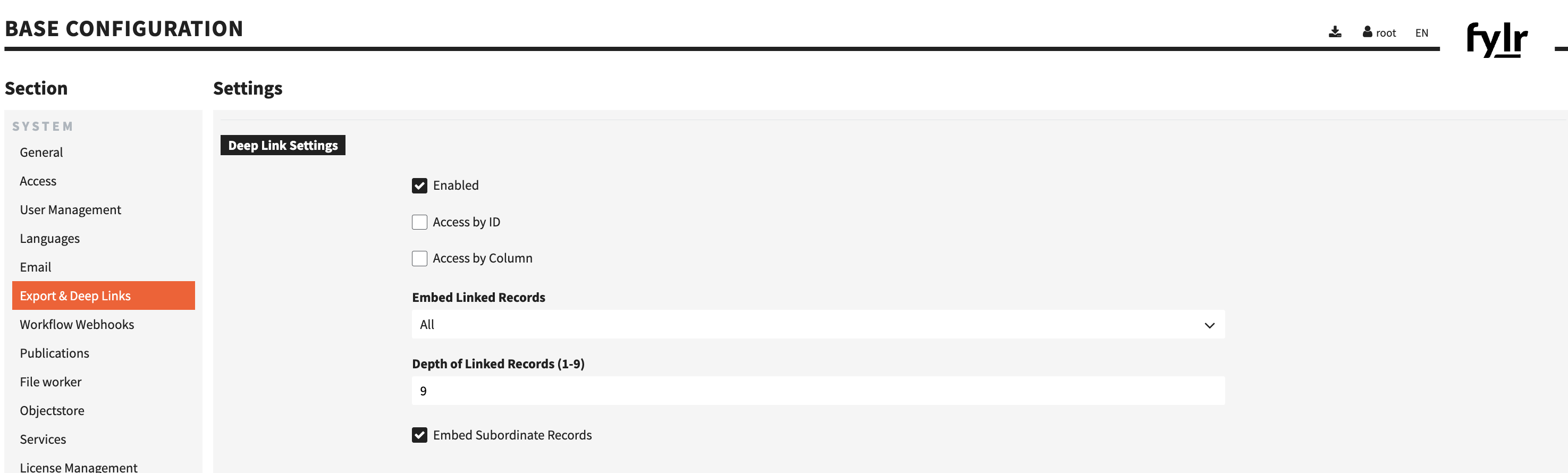
1. In the base configuration of fylr, go to the section "Export & Deep Links"
2. Under Deep Links Settings, enable the service by checking the respective checkbox
Refer to the documentation on [Export & Deep Links](/for-administrators/readme/export-and-deep-links.md) for further explanation on the individual options.
### Activate Rights-Management for versions in the File Worker
When an asset is uploaded to fylr, the [File Worker](/for-administrators/readme/file-worker.md) creates different versions (renditions) defined in the Base Configuration.
Inside the renditions table of the File Worker, choose the appropriate class (audio, image, office, video) and inside the configuration for a given rendition check the "rights management" checkbox to allow sharing of that version via Deep Links.
Make sure to save and reload the instance to apply your changes.
### Setting up rights management for Deep Links
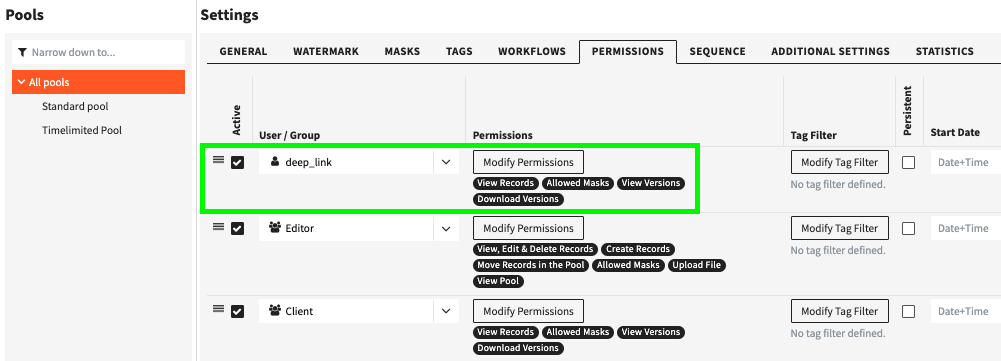
In fylrs right management section, we need to setup correct rights for the system user `deep_link.`This user is included in a fylr instance per default.
It's likely you'll set these permissions for a Pool managing more than one Object Type. Depending on your usage of the datamodel, it's possible the deep\_link user permissions have to be set for an Object Type directly.
Rights Management > Permissions Tab: example configuration for deep_link user permissions
The required Permissions are:
* View Records
* select the Object Types you want to share with the deep\_link user
* Allowed Masks
* for those Object Types, select the Masks you want the deep\_link user to have access to
* View Versions
* the versions the deep\_link user is allowed to see
* Only versions with checked rights management checkbox are listed here: see [File Worker](/for-administrators/readme/file-worker.md) ( Base Configuration > File Worker > renditions tables "rights management" checkbox)
* Download Versions
* mark the versions the deep\_link user should be able to download (required for deep linking versions)
### Creating and using Deep Links
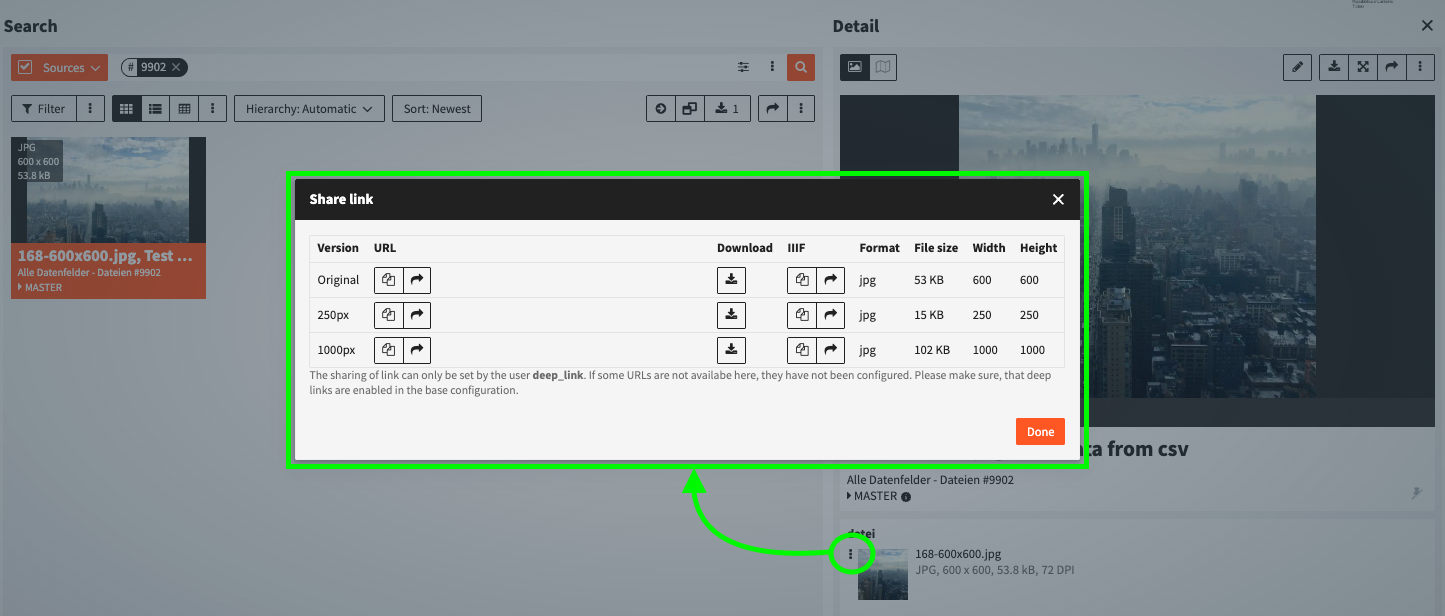
Using the three-dot menu at a records file field to access deep links.
To enable sharing URLs for the deep\_link user, we need to also assign the permissions:
* View Versions
* select the versions of your object types corresponding file class you want the deep\_link user to have access to (this example uses images only)
* Download Versions
* select the you want the deep\_link user to be allowed to download
If you cannot see a sharable link to copy, it's likely the version is not configured to be present in the rights management in the file worker. Refer to [#activate-rights-management-for-versions-in-the-file-worker](#activate-rights-management-for-versions-in-the-file-worker "mention") to allow sharing of more versions.
To assert a working deep\_link, paste the copy into a incognito tab.
## Adding custom IIIF viewers
In the base config, we can add custom IIIF viewers using template replacement for fylr to generate manifests and embeddable templates.
{% hint style="info" %}
**The default viewer used in fylr is the** [**Mirador Viewer**](https://projectmirador.org/)**.** This example additionally showcases the [Curation Viewer](https://codh.rois.ac.jp/software/iiif-curation-viewer/demo/).
{% endhint %}
**Label:**
A descriptive name for the configured viewer.
**HTML Code:**
Construct the URL to be displayed in the frontend by adding the replacement string to your preferred viewers URL.
Examples:
```
https://projectmirador.org/embed/?iiif-content=%iiif_presentation_manifest.url%
https://codh.rois.ac.jp/software/iiif-curation-viewer/demo/?manifest=%iiif_presentation_manifest.url%
```
Alternatively, define a template to generate an HTML snippet embedding a standalone IIIF viewer (e.g., Mirador or Curation Viewer). This snippet can then be externally integrated.
{% code overflow="wrap" %}
```html
```
{% endcode %}
The fylr server will replace the template `%iiif_presentation_manifest.url%` with the actual manifest URL.
{% hint style="info" %}
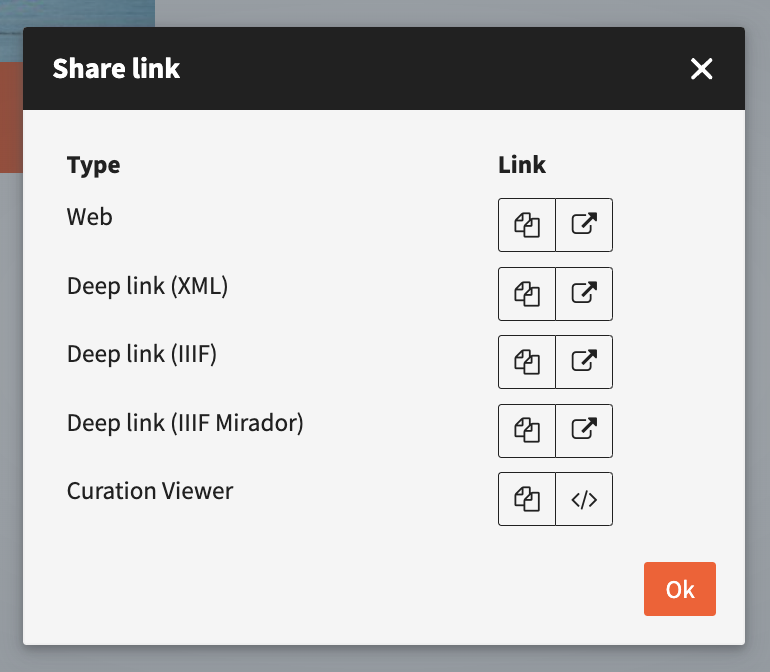
Templates and IIIF-Manifest links are presented accordingly (see Share Link screenshot below!)
{% endhint %}
## **Usage**
{% hint style="warning" %}
A user requires the system right "Sharing of Frontend & Asset Deep Links" to be able to see the share dialogs.
{% endhint %}
The 3-dot menu at the detail view of a record offers function.
IIIF viewers in the sharing dialog of a record.
* You can copy the generated code from the sharing dialog of a dataset and test it by putting inside the [W3Schools iframe test](https://seleniumbase.io/w3schools/iframes) and pressing "Run."
* This link can also be integrated into other web pages