> For the complete documentation index, see [llms.txt](https://docs.fylr.io/llms.txt). Markdown versions of documentation pages are available by appending `.md` to page URLs; this page is available as [Markdown](https://docs.fylr.io/help/tutorials/for-system-administrators/regenerating-preview-images.md).
# Regenerating preview images
How to regenerate preview versions for one or many assets — for example after changing the preview format.
If you need to regenerate versions created in the Fylr [File Worker](/for-administrators/readme/file-worker.md) for a given asset (or many assets), follow these steps:
{% hint style="info" %}
* To use Fylrs inspect mode root access is required
* **Hover the individual actions** for more information on the action
{% endhint %}
## A single file
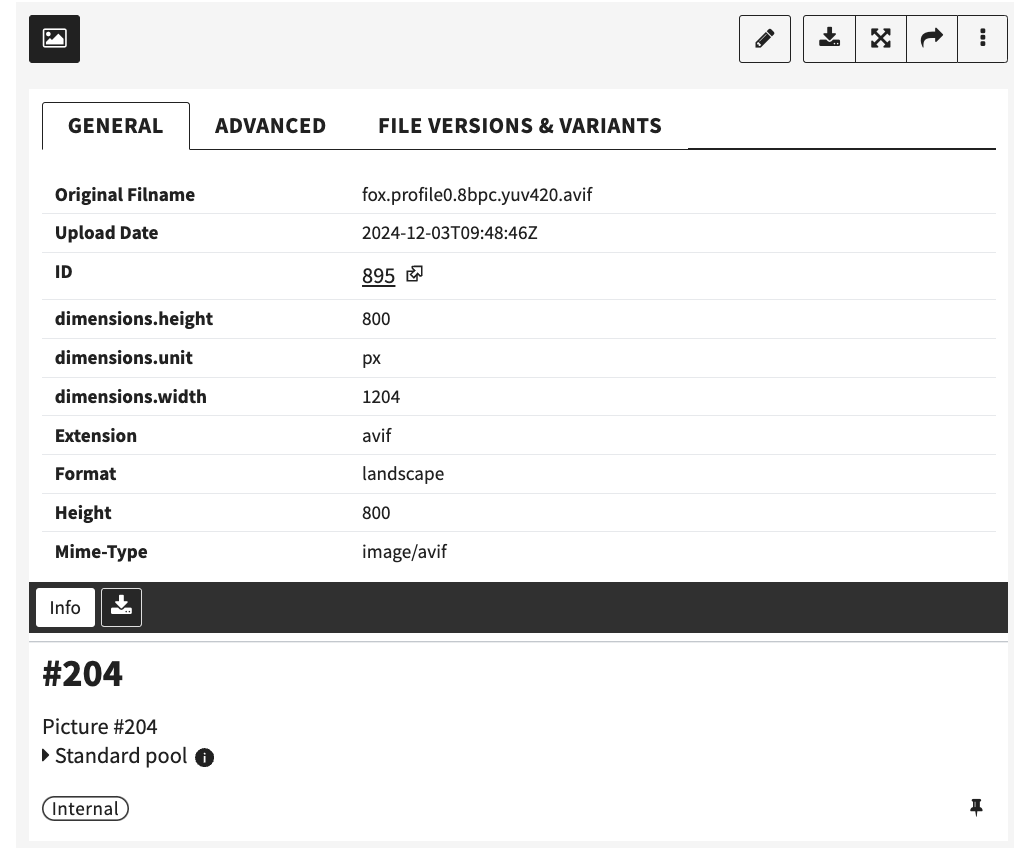
In an assets detail view, open the "info" panel and in the "general" tab follow the link to `/inspect/files` (next to your assets ID)
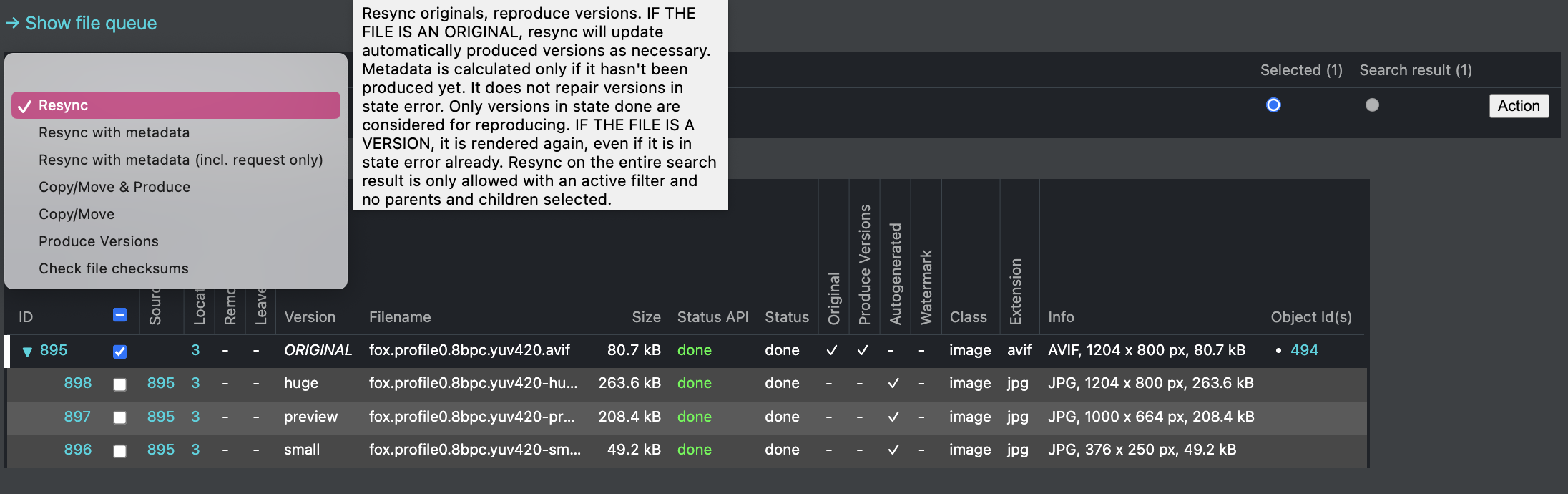
1. select the file you want to regenerate versions for - mostly you want to use the original as the source for generated versions
2. select the action that suits your needs, often a basic resync will suffice
3. confirm the the action
{% hint style="info" %}
Hover the select options for more detail on what an action produces
{% endhint %}
Now new versions will be generated. To confirm the creation look in the detail view where we started the process and find your newly created versions.
## Multiple files
#### Generating a newly created rendition for existing records
After adding a new rendition to the fileworker, the new rendition is not produced automatically and will be generated for each new file uploaded to the instance.
To produce the new rendition for existing records, follow this list:
1. open the `/inspect/files` page of your Fylr instance
2. apply a class filter to only target files of the newly created renditions file class
3. use the `Version` select to filter only for original files. select only `Parents` to only show originals and not the existing renditions.
4. Refresh the result list by clicking `search` (list should show only Originals now)
5. either select all on page, the entire search result or select the files you need
6. select action `resync` to generate missing renditions for the selected files
7. confirm the the action
{% hint style="info" %}
**To select all records in the action panel, deselect the `Parents` and `Children` checkboxes.**
{% endhint %}
#### Generating renditions for all files
If renditions turn out erroneous it's best to produce a new set versions using the action `produce versions` . **This will produce versions for all selected files**.
## Changing the preview format
The recipe that generates a preview version also determines its **file format** — for example whether an image preview is produced as PNG or JPEG. To change the format:
1. Open the base configuration and go to **File Worker →** [**Preview Configuration**](/for-administrators/readme/file-worker/preview-configuration.md).
2. Edit the version and adjust its recipe options so it is produced in the desired format (for example JPEG instead of PNG), then **save**.
3. The new format applies to **newly uploaded files only**. Re-generate the files that already exist with a **resync** as described above.
{% hint style="info" %}
A resync only re-creates versions that are missing or out of date — correct versions are left untouched. If a version is **derived from another** (for example a `small` version produced from the `preview` version), re-generating the source also re-generates everything derived from it. While a file is re-processed its versions update one by one, so for a short moment not all of them are available; the file in the old format is removed as soon as the new one has been produced.
{% endhint %}
***
Depending on the number of selected files the resync can take some time. To confirm the successful generation of new versions find a record in the Fylr frontend and inspect the versions in the details Info tab.
Alternatively inspect the detailed logs in the Fylr console located at the URL `/inspect/system/console` .
You can also watch the outstanding jobs in the **Queue Manager** at `/inspect/system/queues` — select the **`file`** queue.